Here's a bunch of answers to questions that get asked pretty often.
Buying and installing the gameI ordered the game but I didn't get my download linkCheck your spam folder.
If it's not there, you can use this
tool to resent the lost emails.
Sometimes it takes a little while (up to an hour) before PayPal informs the servers that you've ordered the game. If more than an hour has passed and you're getting worried that something mysterious happened to your order, email me at
crayonphysics@gmail.com and let me know the email address you used to buy the game with. I'll get back to you with the download link.
I got an email, but it was black and/or contained attachmentYou should try resending the email using this tool
http://www.crayonphysics.com/resend_secretkey.php.
If it doesn't work email me at
crayonphysics@gmail.com and let me know the email address you used to buy the game with. I'll get back to you with the download link.
What's the system requirements of the gameWindows XP / Vista
1 GHZ or faster CPU,
512 MB or more RAM,
DirectX 9.0
3D card with 128 MB of texture memory
If you doubt that your system might not run the game, you should
try the demo. The demo IS NOT the same thing as the prototype in which you could only draw boxes. They are based on different tech so even if the prototype runs Crayon Physics Deluxe might not.
Is it possible to install the game on multiple computersYou can install the game onto as many computers as you and your family might own.
Technical problemsMy screen is all black, I can't see anythingSee Possible solution to graphics card problems bellow.
When I start the game, my computer rebootsSee Possible solution to graphics card problems bellow.
The screen is all messed upSee Possible solution to graphics card problems bellow.
NV4_DISP infinite loopSee Possible solution to graphics card problems bellow.
Possible solution to graphics card problemsYou can go here for details, but quickly you should install
DirectX and update your graphics card drivers (
ATi Nvidia Intel).
It would be great if you could post to the forums information about your graphics card and the problem that you're experiencing and possibly the solution. If you don't have a solution send in the information about your graphics card and a small description of the problem. This way we can track down the problematic graphics cards.
It's totally possible that your graphics card can't run Crayon Physics Deluxe. The game requires a certain amount of texture memory in order for it to work and not all graphics card have it in them. Also some integrated laptop graphics cards are causing trouble.
If you've bought the game and you can't get it working, email me at
crayonphysics@gmail.com and I'll refund your order. Be sure to remember to include the email address you used to buy the game with.
Editor and PlaygroundHow do I use the level Editor?Go here and read.
How to use the level editorHow do I upload levels to the Playground?Save your level, and click 'upload level' from the menu.
You need to have an account to do this, and CPD needs to be online and allowed to access the internet. Firewall Settings Must Allow Crayon.EXE access to the net.
How do I play levels from Playground?Click on the download link and save the image on your desktop. Then drag and drop the image into the game and it will open up in the editor.
Tips: You can press alt+enter to swap between windowed and fullscreen mode. You can adjust the size of the window from options.
Release 53 and onward. In your browser, you can just drag and drop the thumbnail of the level to your desktop and drag it from there to the game.
Please feel free to post more questions here and we will try to Help and answer them. Thanks to zzzdude and McWonderBeast for the original FAQs BE SURE TO USE THE SEARCH FEATURE BEFORE POSTING!!!Things to try before asking for help (a.k.a. the solutions to most problems):
- If it is a bug with the website, try Refreshing, logging in/out, or deleting cookies
- Be sure your system meets the requirements*:
- Windows XP / Vista
- 1 GHZ or faster CPU
- 512 MB or more RAM
- 3D card with 128 MB of texture memory
- Make sure you have the latest version of DirectX
- Update your graphics card drivers: ATi Nvidia Intel*
- Make sure your Firewall/Antivirus allows CPD to access the internet
- Try loading other levels if the problem occurs in game
When asking for help please provide the following information:- Computer Specs
- Build Number - which edition of the game do you have?
- Operating System
- A detailed explanation of the problem (Screenshots* are a big help!)
- What you have tried to do to fix it, and what the results were
- Check the FAQ thread
When your problem is solved please add to the thread title a "[Solved]" tag to the beginning of the name, this will help people looking for a similiar problem, or tell others to stop posting in the thread.*
How to find your system specs:XP users:- Click the Start button
- Click 'Run...'
- Type in dxdiag
- Click 'OK'
- Note what is says on the the System and Display tabs
Vista users:- Click the Windows Logo button
- Type in dxdiag
- Click 'dxdiag'
- Note what is says on the the System and Display tabs
Go to Start->Run (or Win+R)
type in "dxdiag"
see computer specs, go to the display tab for video card specs.
**
How to Post a Screenshot:- Press the PrntScrn button, Alt+PrntScrn for a screenshot of only the current window, to copy the screen to your clipboard.
- You can then paste(Ctrl+V or Edit->Paste or Rightclick->Paste) this into your favourite image editing software (MSPaint for those who don't have any).
- You can then save as .JPG and attach this image to your post.
This will help the people at the forums to diagnose your problem, and possibly give you a solution to fix it, with relative ease.
-Thanks V.Dog for a nice layout and some information. (

)
-it keeps putting the end list code thingy at the end of my post D:
Since a lot of the suggestions for features for the level editor are actually already there (just undocumented - I didn't know half of this before this morning), I've written up a level editor guide.
I've you've got any more hints and tips, post them here. If you've got a bug report or a feature request, post it in the
Level Editor topic on the Suggestion board.
 The KeysPress
- Tab - Toggle Simulation (start/stop playing the level)
- Left Ctrl + S - Save To File Without Dialog
- . - Add a Wall Pin (red or invisible pins)
- , - Add a Game Pin (blue, player usable pins)
- s - Add Collectable (star)
- b - Add the Ball
- 0 -9 - Drawing Colour
- c - Random Drawing Colour
- PageUp - Next Drawing Colour
- PageDown - Previous Drawing Colour
- o - Import Object: Rocket
- Ctrl + C - Copy
- Ctrl + V - Paste
- Ctrl + Y - Redo
- Ctrl + Z - Undo
Hold- Shift - Draw tool: Draw on Background (or object). Move tool: Select multiple objects
- Alt - Draw Static (shapes which don't need to be pinned to stay still)
- Ctrl - Move Tool (switchs back to the draw tool on release)
- r - Draw Rope
Hints and TipsDrawing & Moving:- Hold down Shift to select multiple items (thanks, Pinkfish). They can then be moved or copied and pasted.
- If you select a wall pin and a shape (or group), rotating the shape(s) will rotate them around the pin.
- To get a straight line, move the cursor outside the level and draw a line; it will draw against the edge of the page. It can then be moved/rotated/copied as required. (Thanks, Chance)
- Alternatively, you can use Mousekeys to create straight lines - see the posts below. (Thanks, Affanis)
- Drawing small circles will create pins. This also works in the game. (Thanks, Chance)
- Hold down Shift & the Right-Mouse-Button to erase the crayon lines on the background.
This can also be used on shapes to create invisible objects (you must leave a small amount of crayon on the shape, or it will be removed). (Thanks, McWonderBeast)
Pins & Hinges:- The ball can be pinned to objects, however, it won't respawn properly it it's lost.
Rockets:- Rockets won't ignite until a shape, line, or rope is dropped on it- balls & other rockets won't ignite it, and neither will any form of horizontal impact.
Force:- You can change the amount of force: Select an arrow with the move tool, click and hold the rotation icon (green arrows), and move your cursor along the length of the arrow to make it grow or shrink.
- Force Arrows need to be pinned to shapes (or the ball) to exert force on them
- Use one pin, and the force will always pull in that direction (relative to the level), regardless of which way the object rotates.
- Use two pins, and the force will rotate as the shape rotates.
- Pin a force arrow off center (the little black x) on a circle with two pins to create a motor
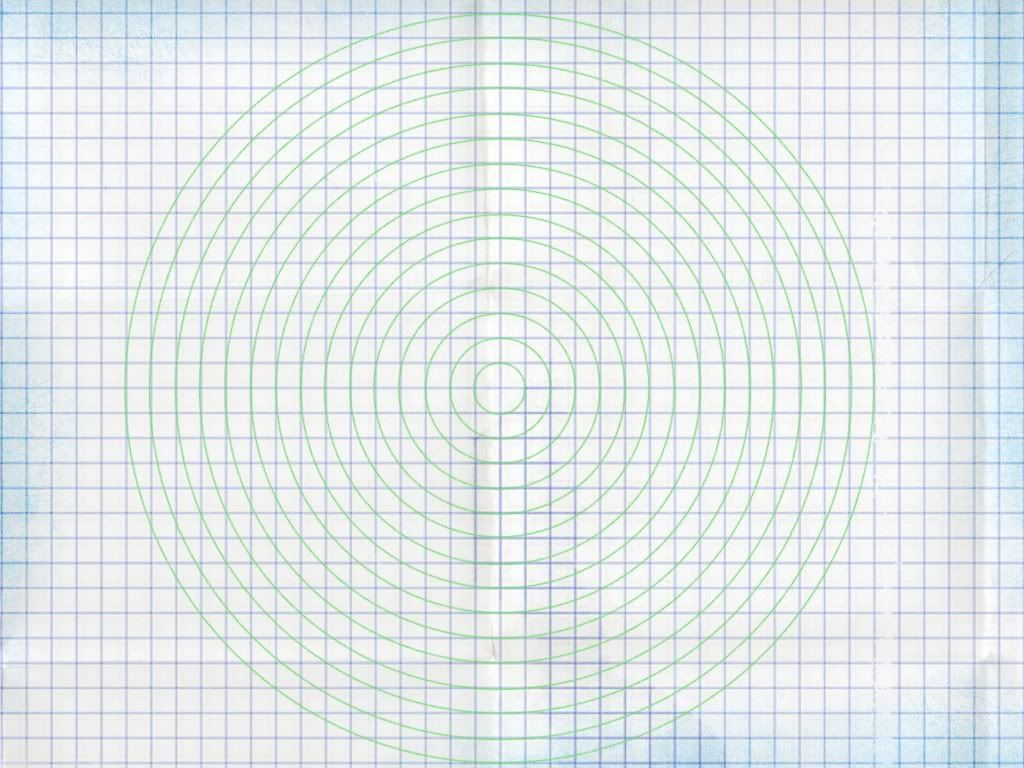
UI TweaksIf you can't draw a circle freehand, try my modified editor grid:

(click for the full version)- Back up the file \CrayonPhysics Deluxe\data\gfx\editor\editor_background_grid.jpg
- Save the new version to the same location
Advanced: How to bind colours to keys:- Back up the file \CrayonPhysics Deluxe\data\dev\editor_keybinds.txt
- Open it in Notepad
- At the bottom of the file, you'll find the following:
[/list][/list][/list]
Keyboard::Bind( "1", "Game::SetDrawingColor( 204, 4, 6 )", 10 );
Keyboard::Bind( "2", "Game::SetDrawingColor( 230, 127, 7 )", 10 );
Keyboard::Bind( "3", "Game::SetDrawingColor( 230, 245, 13 )", 10 );
Keyboard::Bind( "4", "Game::SetDrawingColor( 3, 255, 5 )", 10 );
Keyboard::Bind( "5", "Game::SetDrawingColor( 1, 3, 255 )", 10 );
Keyboard::Bind( "6", "Game::SetDrawingColor( 1, 2, 3 )", 10 );
Keyboard::Bind( "7", "Game::SetDrawingColor( 126, 127, 128 )", 10 );
Keyboard::Bind( "8", "Game::SetDrawingColor( 245, 245, 245 )", 10 );
Keyboard::Bind( "9", "Game::SetDrawingColor( 127, 15, 0 )", 10 );
Keyboard::Bind( "0", "Game::SetDrawingColor( 15, 63, 0 )", 10 );
- The number in quotes is the key you want to use, the three numbers in brackets represent the colour as red, green and blue components, ranging from 0 to 255 (here's a colour mixer to help you see what numbers represent what colour)
- change the numbers in brackets to whatever colours you want. If you want to add more keys, the best thing to do is to copy and paste that section to keep the code correct. For example:
Keyboard::Bind( "1", "Game::SetDrawingColor( 255, 0, 0 )", 10 );
Keyboard::Bind( "2", "Game::SetDrawingColor( 255, 127, 0 )", 10 );
Keyboard::Bind( "3", "Game::SetDrawingColor( 255, 255, 0 )", 10 );
Keyboard::Bind( "4", "Game::SetDrawingColor( 0, 255, 0 )", 10 );
Keyboard::Bind( "5", "Game::SetDrawingColor( 0, 0, 255 )", 10 );
Keyboard::Bind( "6", "Game::SetDrawingColor( 0, 0, 0 )", 10 );
Keyboard::Bind( "7", "Game::SetDrawingColor( 127, 127, 127 )", 10 );
Keyboard::Bind( "8", "Game::SetDrawingColor( 224, 224, 224 )", 10 );
Keyboard::Bind( "9", "Game::SetDrawingColor( 127, 15, 0 )", 10 );
Keyboard::Bind( "0", "Game::SetDrawingColor( 15, 63, 0 )", 10 );
Keyboard::Bind( "-", "Game::SetDrawingColor( 15, 63, 127 )", 10 );
Keyboard::Bind( "=", "Game::SetDrawingColor( 238, 188, 100 )", 10 );
Important!You make these changes at your own risk. I'm not responsible for breaking anything, nor any horrible colour combinations you come up with- if you go blind, it's your own fault.